
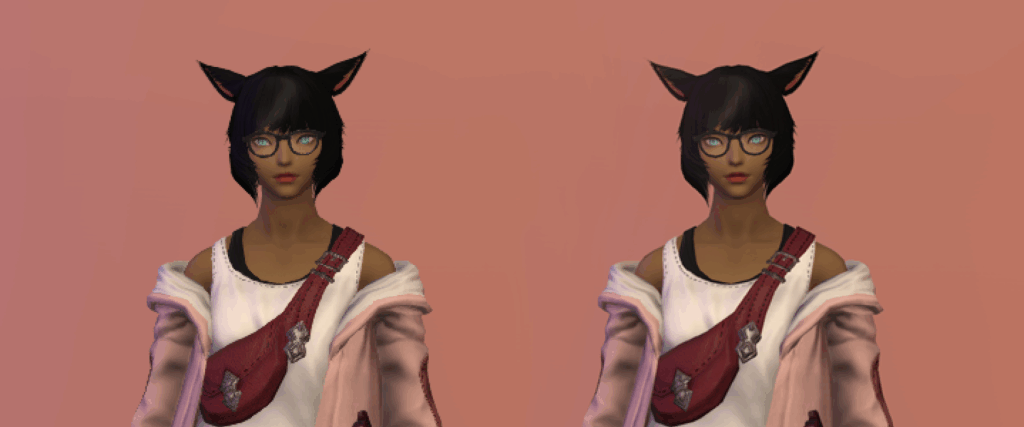
Upscaling your screenshots is a great way to increase the quality of them. It’s one of the more accessible options that even vanilla players can generally use.
The method you’ll be using to upscale your resolution depends on your GPU or device.
Finding your GPU
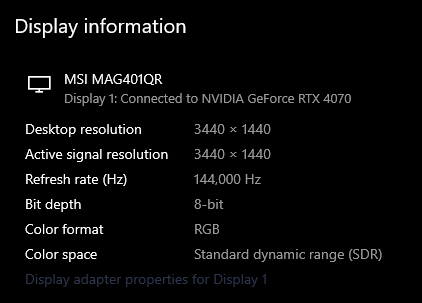
If you’re unsure what GPU you are using, you can press the Windows key and type "Settings." From there go to System > Display > Advanced Display settings. Here you’ll see what type of GPU your monitor is connected to.
NVIDIA GPU:
NVIDIA control panel
To enable upscaling on an Nvidia GPU, right-click your desktop and open the Nvidia Control Panel. In the window that appears, go to 3D Settings > Manage 3D Settings > Global Settings > DSR-Factors. Clicking DSR-Factors will offer you a dropdown menu with the available upscaling options.
Select the level of upscaling you want, then click Apply. After that, reopen the game and you’ll be able to set the resolution higher than technically possible.
Note that this only works in full-screen mode.
AMD GPU:
AMD Radeon Software
If you’re using an AMD graphics card, right-click your desktop and select AMD Radeon Software. Here, click on the gear icon in the top-right corner to open the settings page, then go to the Display tab. Enable the second option: Virtual Super Resolution.
After that, you can enter the game and increase your in-game resolution.
Note that this only works in full-screen mode.
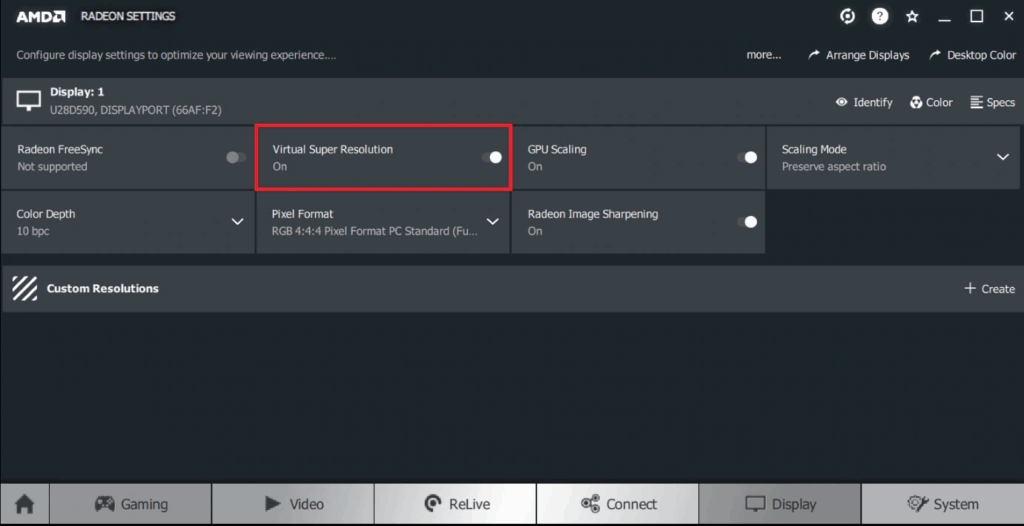
If you’re using the older AMD software, the same option is available in the layout shown in the image.
PS4 pro:
Supersampling Mode
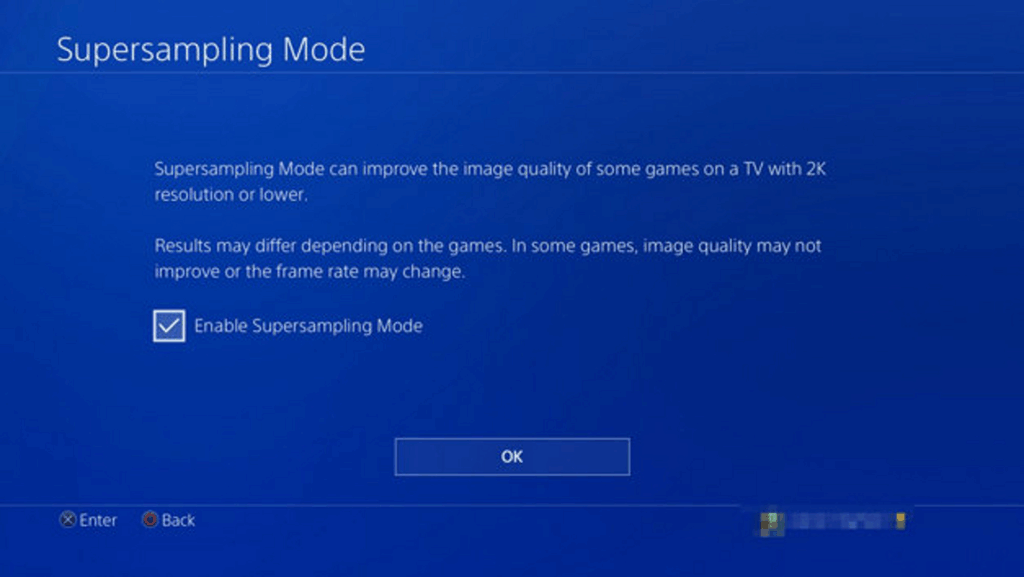
Owners of a Playstation 4 Pro are in luck—you are also able to upscale. On your PS4 Pro, go to Settings > Sound and Screen > Video Output Settings.
Here you’ll find Supersampling Mode. Enable it and confirm. This option is only available if you’re not already using a 4K monitor.